AWS Lambda, Secrets Manager, VPC Timeout

Yesterday I needed to deploy a Lambda function to send out email reminders for my client. In setting this up I need to add it to a VPC so it could connect to the database which was straight forward. On our platform we use Secret Manager to store our connection strings for our connections to our databases. It all sounds great, but the function kept timing out and I wasn’t getting any information about the why.

Like any respected engineer (or desperate) I started to add console.logs every where. I figured that there was a connection issue to the database since it is not accessible to the public. After some annoying cycles of add log, redeploy, test rinse and repeat it turned out that it was hanging trying to connect to Secret Manager.

This didn’t make much sense at first, there were no security groups that were restricting outbound traffic. I checked the credentials that it was using and those were fine. Then I turned to the engineers best friend, Google. After some digging, I found that Lambda needs internet access to get to Secret Manager and I am not willing to give it access. So what were my options?

I remembered that I used an endpoint so I don’t have to route my database traffic over the internet. Endpoints allow you to access available services through the AWS internal networks and not over the internet. Not all services have endpoints that you can create, but it turns out that Secret Manager is available. It is incredibly simple to setup. Here are the steps.

You have to navigate to the VPC section of AWS, and select Endpoints item in the left nav menu.

Now you can click Create Endpoint and you can look through the list of services that are available. It should look something like this.

You want to select what is the category of services that you want to use, in my case it was the default AWS Services. Search for Secret Manager and it will pop into the list. Once you make the selection, your only task left is to select the VPC you want to attach it to.
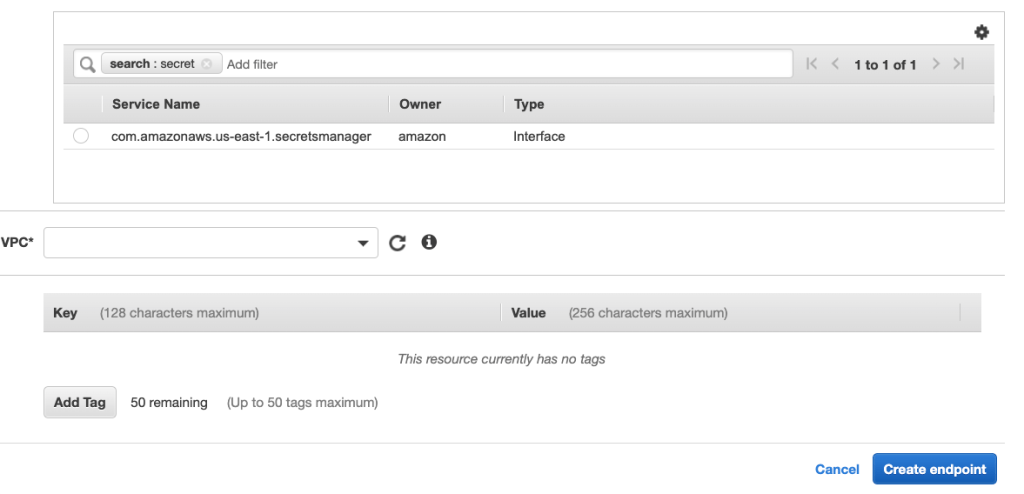
That’s all it takes. After a short period (~45 seconds) your endpoint will be attached and all is well again.

ECS and Rapid Failure

Yesterday, I created a condition where my Tasks were dying and restarting in rapid succession. When the container started, it immediately failed. Because of this rapid failure, I ran out of disk space because the images where building up. So eventually the tasks were no longer able to deploy, what to do?

ECS does cleanup the old images on the host, but that cleanup interval is defaulted at 3 hours. When the application fails after a second, the deployed images stack up and are not cleaned in enough time. There is a number of settings that you can set in the launch configuration if you need to and are detailed here:

https://docs.aws.amazon.com/AmazonECS/latest/developerguide/automated_image_cleanup.html

There is a specific setting that I am going to try tomorrow that I hope will help protect me from this resource exhaustion. ECS_ENGINE_TASK_CLEANUP_WAIT_DURATION seems to be what I am looking for, but I think the question becomes the impact of setting it to a lower value than 3 hours. I guess I will find that out tomorrow.

As an aside, I found myself in the situation because I was using the wrong access keys for the environment. When the application starts, it reads from secret manager before configuration in the IOC container. The only fix was to either wait 3 hours, not an option, or spool up another host and then let the tasks re-deploy. Hopefully I will have good news to report back!

TIL – AWS Email Templates

I have been using SES templates for a while now, but I just learned something interesting. Each user will have their own templates, unless I missed something.

Templates are incredibly simple to create, you need only specific the subject and the content. A sample template looks like this:

{
	"Template": {
		"TemplateName": "MyTemplateName",
		"SubjectPart": "{{MySubjectText}}",
		"TextPart": "string",
		"HtmlPart": "<p>Here is my templated content</p>"
	}
}

Ok, I lied you do need a template name and the text part. There are a couple of things to note on the htmlPart. It is not an entire HTML document, only the content between the body tags. As you might expect this also will need to be escaped since it is a proper JSON payload. The help shrink it down I use https://www.textfixer.com/html/compress-html-compression.php to remove all of the line breaks and other characters that would stop this from processing.

Deploying these templates are pretty straight forward, you need to run the aws configure cli command to make sure you are using the correct credentials and pointing to the region that you want (SES is not available everywhere). After that you simple:

aws ses create-template --cli-input-json  "$(cat ./mytemplate.json)" 

This will add it to the library so that you can use it. You follow the same process for updating but you swap create for update:

aws ses update-template --cli-input-json  "$(cat ./mytemplate.json)" 

The way I figured out that the templates were user specific was using the get-template command. When I asked for the template back, I was seeing what I expected. When I used it, I was still getting an old version. I use a different set of access keys for my production and development systems. After all of the non-sense debugging, I decided to give the other credential a try. Sure enough it had the old versions. This is why it is important to know how you are configured ( I knew that) when you are using the cli. FYI, here is how you get the template:

aws ses get-template --template-name mytemplate

As you know, I am a .NET engineer so that is at the heart of everything I do. Here is an example of a method that I used to send out the templated email:

 private async Task<bool> SendTemplateEmailAsync(List<string> destinations, object parameters, string from, string templateName)
        {

            SendTemplatedEmailRequest r = new SendTemplatedEmailRequest();
            Destination d = new Destination(destinations);
            r.Destination = d;
            r.TemplateData = JsonConvert.SerializeObject(parameters);
            r.Template = templateName;
            r.Source = from;
            r.ConfigurationSetName = "Initial";
            try
            { 
                var result = await _client.SendTemplatedEmailAsync(r).ConfigureAwait(false);

                if (result.HttpStatusCode == System.Net.HttpStatusCode.OK)
                {
                    return true;
                }

                return false;
            }
            catch (Exception exception)
            {
                _logger.LogError(0, exception, "Failed to send the email);
            }

            return false;
        }

That is the full path for using the template emails in .NET.